
Writing a fresh job description every time you open a role? That’s a lot of reinventing the wheel. Job Description Templates let you create and store as many descriptions as you need, then pull one up in seconds whenever you create a job. Write it once and reuse it as often as you like.
Step 1: Head to Account Details
- From your ATS dashboard, click the menu icon in the upper right corner.
- Select Account --> Account Details from the drop-down menu.

If you do not see an option for templates once you're on the Account Details page, then you do not have the correct permission to manage those. Please reach out to an Admin for further assistance.Step 2: Open your Job Description templates
- Find the Templates section.
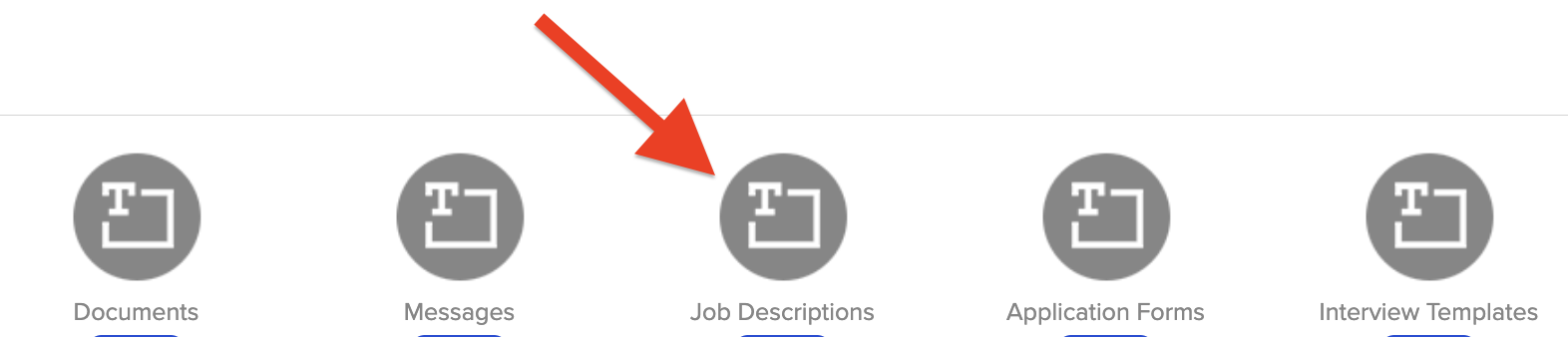
- Click Job Descriptions.
Step 3: Add a new template
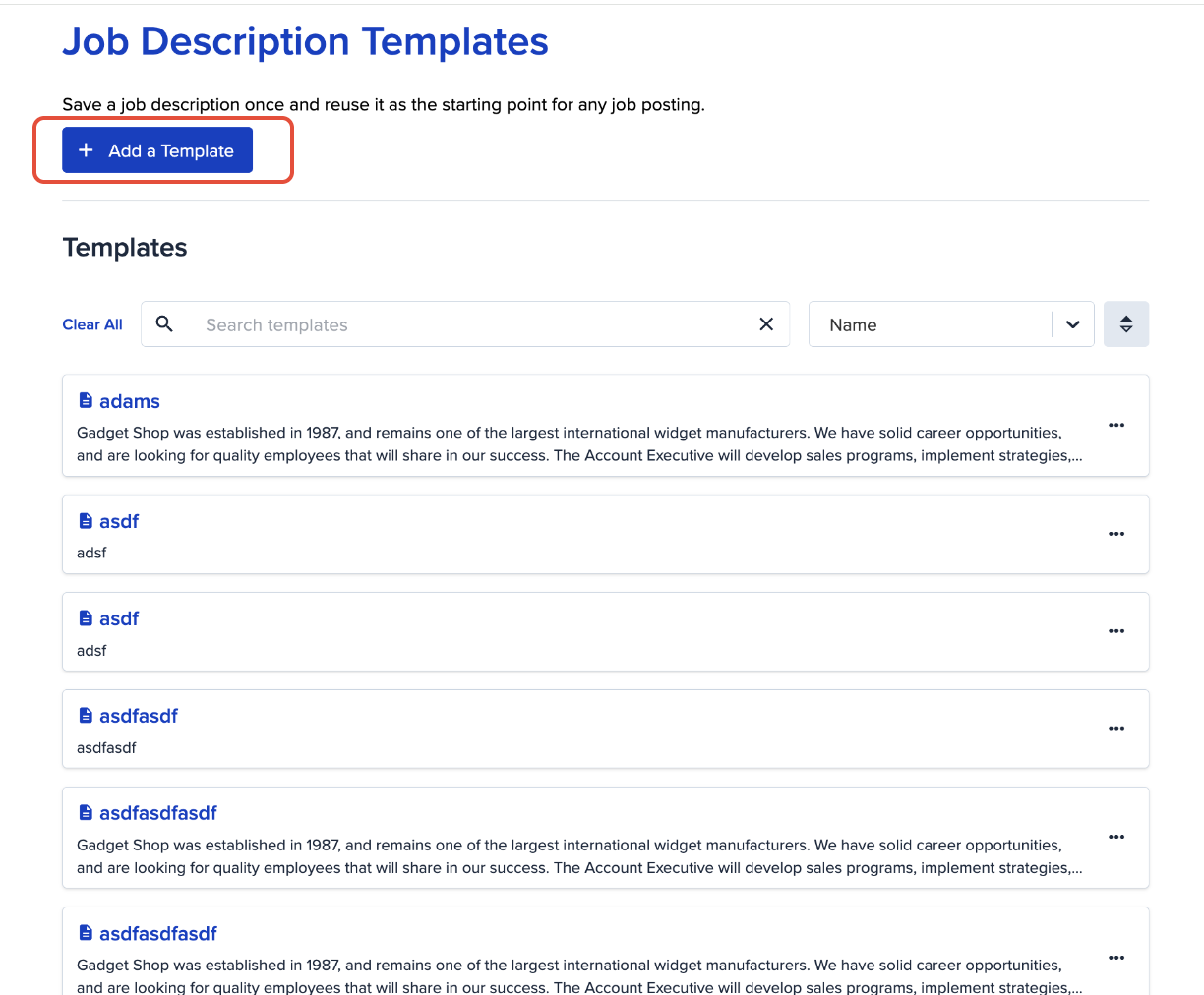
- Click the Add a Template button at the top of the page.
Step 4: Write your job description
Now for the fun part. Type in the details for your new job description. A few options here can save you some time:
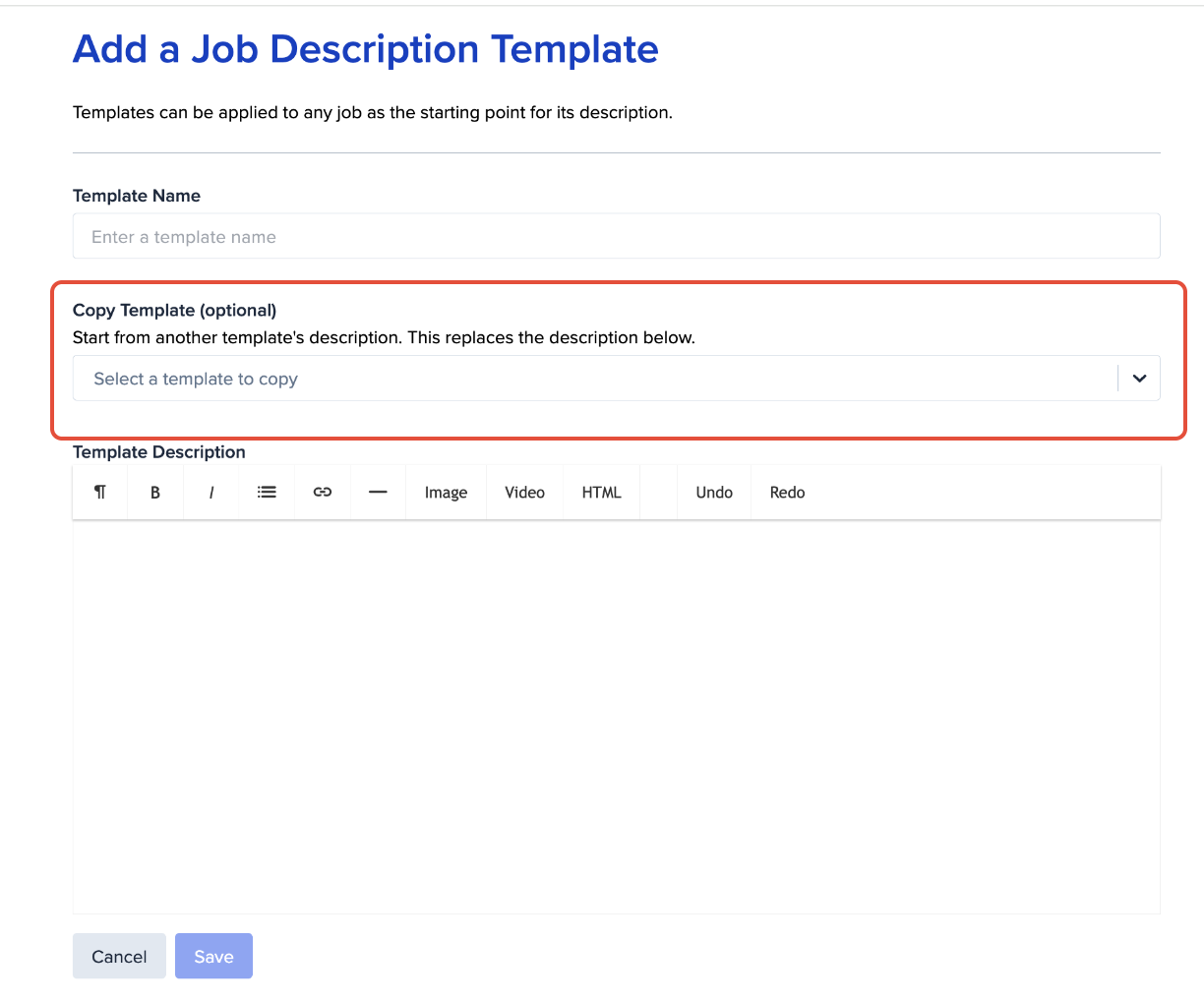
- Copy Template: Already have a description that’s close to what you need? Check the Copy Template box and choose an existing template from the drop-down list. The new template will start with that content, so you only need to tweak what’s different. No retyping required.
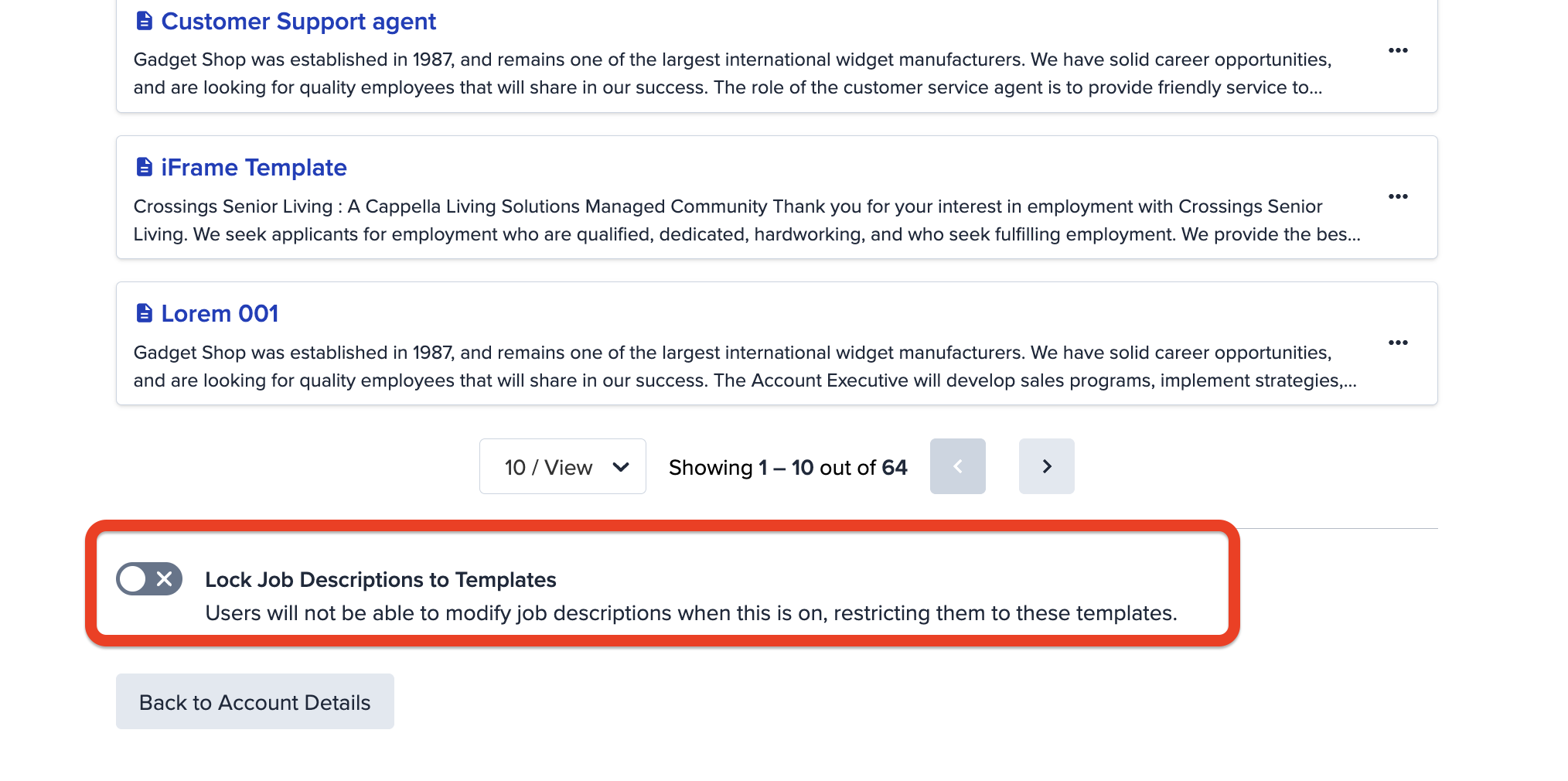
- Lock Job Descriptions to Templates: Turn this on if you want [confirm behavior, e.g. job descriptions to come only from your saved templates, so postings stay consistent across your team].
Step 5: Save your template
- Click Save, and your template is ready to use.
That’s all there is to it. A small library of solid templates can save your team a surprising amount of time, and it keeps your postings consistent too. If anything doesn’t look quite right or you’d like help getting your templates set up, our support team is always happy to help. Reach out any time.