
"Where did this candidate come from?" is one of those questions that sounds simple right up until someone asks you to prove it. Maybe you're deciding whether that sponsored listing was worth the spend, or maybe you just want to know whether your careers page is pulling its weight.
Good news: the ATS tracks a source for every applicant, and there are three ways to get at it depending on whether you need one answer, a whole spreadsheet, or a quick visual.
Option 1: Check a single applicant's profile
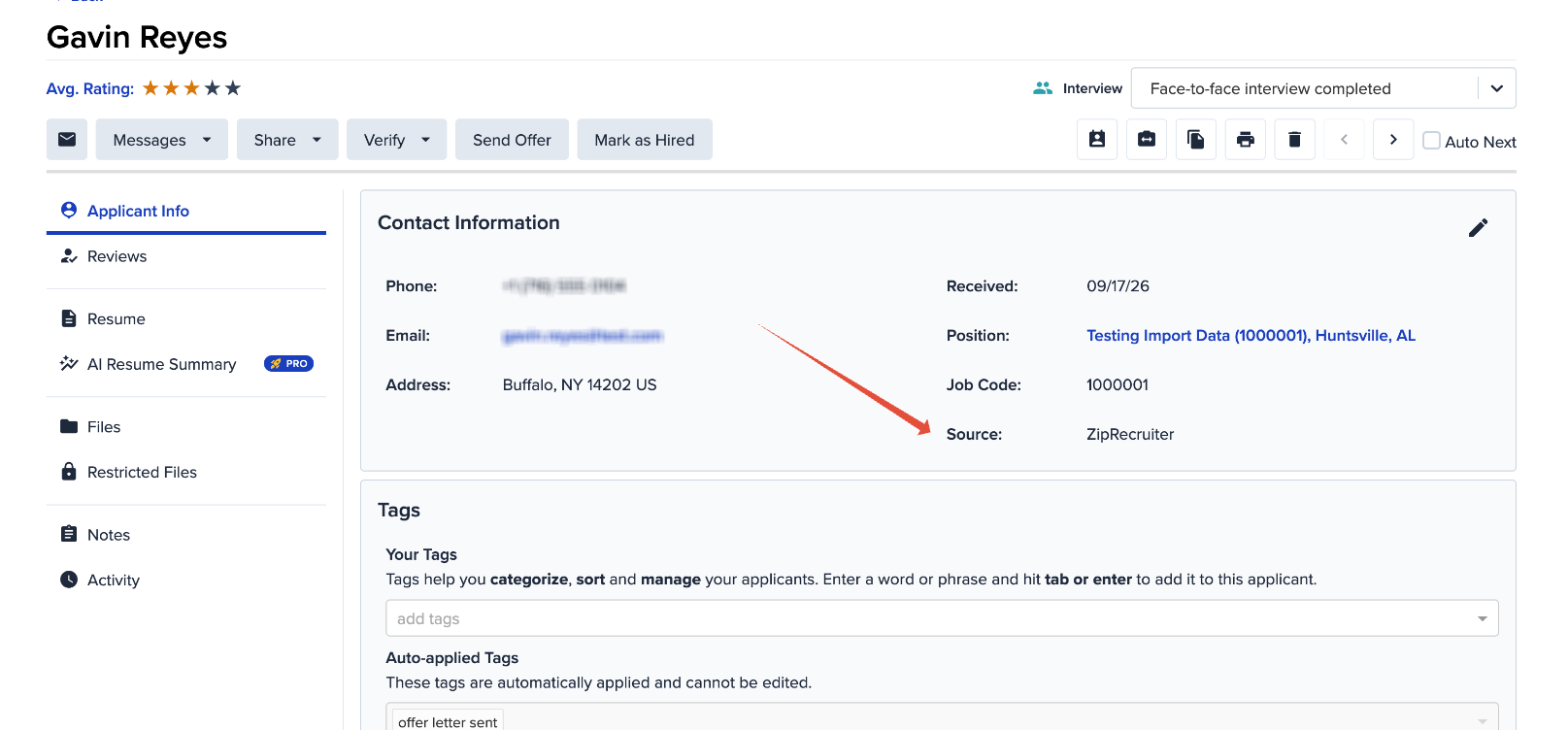
Fastest route when you just need to know about one person.
- Open the applicant's profile from your Dashboard, a job's applicant list, or Pipeline View.
- Look for the Source field in their applicant info.
That's the whole trick. No report to run, no export to wait on.
Option 2: See the big picture on the Applicant Reports page
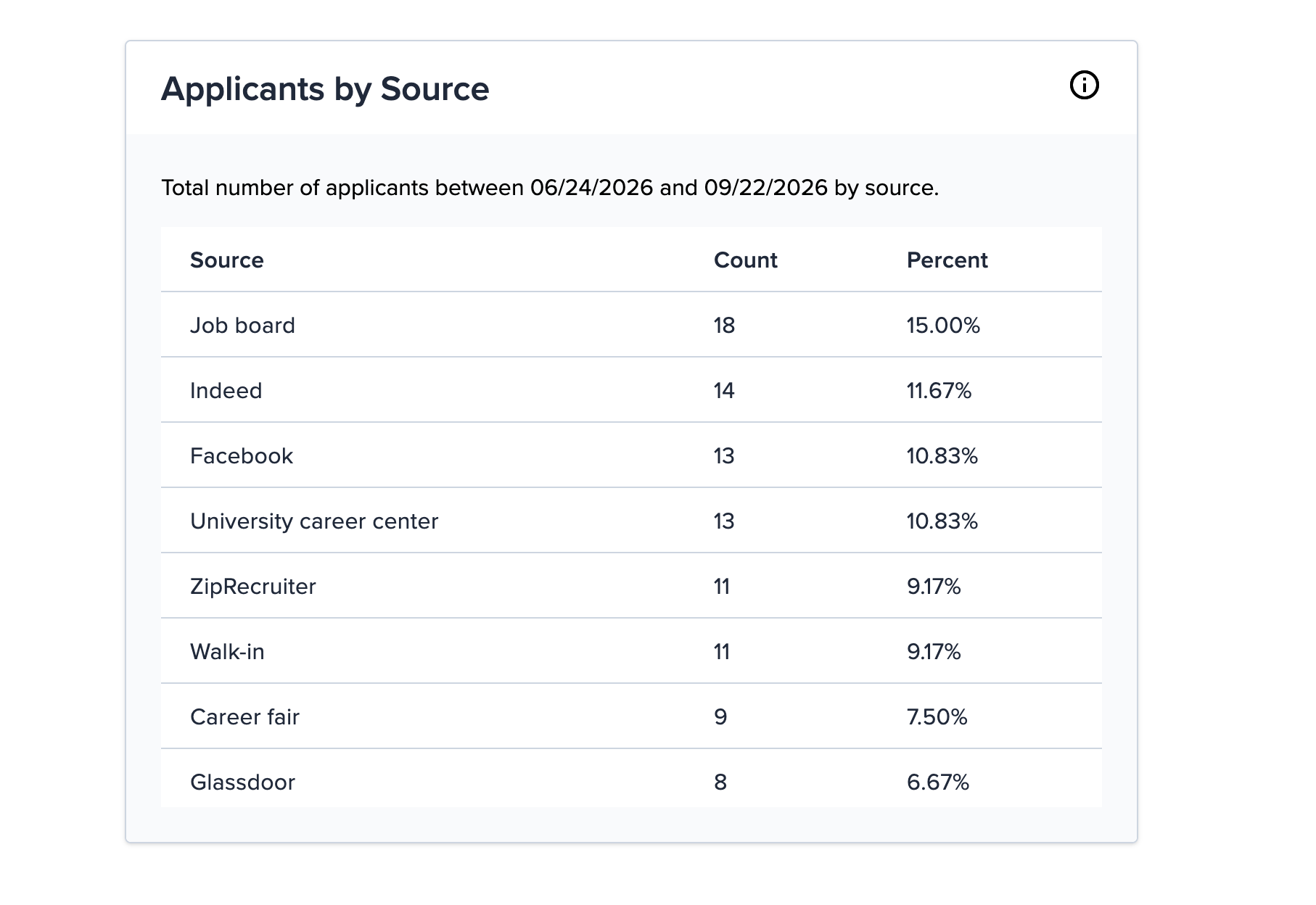
If you're less interested in any one candidate and more interested in which channels are actually working, the in-app Applicant Reports page gives you a source summary in chart form.
- From the main menu, navigate to your Reports section and open Applicant Reports.
- Find the source summary chart, which breaks down your applicants by where they came from.
This is the view to pull up before a hiring team meeting, when someone asks whether the job board subscription is earning its keep and you'd rather answer with a chart than a shrug.
Option 3: Download a report for the full details
When you need the actual data, whether to filter it, sort it, or hand it to someone who lives in spreadsheets, a downloadable report is your friend. These reports include source information:
- All Applicant Data reports – Exactly what it sounds like. Every applicant, every field, source included. Start here if you're not sure which report you need.
- Hired Applicant Report – Narrows things down to the people you actually hired. Useful for answering the question that really matters: which sources produce hires, not just applications.
- Applicant Status Change report – Tracks applicants as they move through your pipeline, with source along for the ride. Handy for spotting whether candidates from certain sources tend to stall at a particular stage.
To run any of these:
- Go to your Reports section.
- Select the report you want.
- Set your date range and any other filters you need.
- Download the file and open it in your spreadsheet program of choice.
Which one should you use?
| What you need | Where to look |
|---|---|
| The source for one specific candidate | The applicant's profile |
| A quick visual of where applicants are coming from | Applicant Reports page (chart) |
| Sortable, filterable source data for all applicants | Applicant Data reports |
| Sources that actually led to hires | Hired Applicant Report |
| Source data alongside pipeline movement | Applicant Status Change report |
A quick note on what you'll see in the Source column
Sources can get more specific than you might expect. Some job boards report back in more than one flavor depending on how the candidate reached you, and applicants who pick an option from your "How did you hear about us?" dropdown will show whatever label that option uses.
Indeed is the most common source of head-scratching here, since it shows up three different ways. If you're seeing Indeed, Indeed Organic, and Indeed Sponsored in your reporting and wondering what separates them, here's the breakdown.
One thing worth checking if your numbers look off: if your "How did you hear about us?" dropdown includes custom options that duplicate a standard source, applications can land under the custom label instead of the one you'd expect.
Source data is one of those things that quietly answers a lot of expensive questions once you know where to find it. If a source looks wrong, a report isn't showing what you expected, or you want a second opinion on what your numbers are telling you, our support team is always happy to dig in with you. Reach out any time.